← Back to Collection
TrackCard · Apple Find My

Track
smarter.
Not bulkier.

Credit-card thin. Wireless-charging ready. Works quietly with the Apple Find My network — so the things that matter are never really lost.

1.8mm
Thickness
IP67
Waterproof
5.1
Bluetooth LE
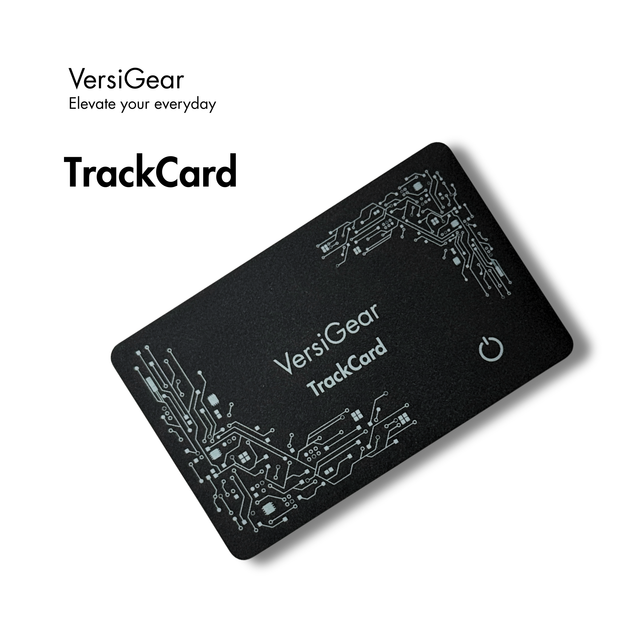
VersiGear TrackCard
📍
Find My Network
Taps into hundreds of millions of Apple devices worldwide to locate the card.
🔔
Play Sound
Within Bluetooth range, ring the card to surface it from a bag, drawer or couch.
🛡️
Anti-Stalking
Apple alerts you if a tracker not yours is travelling with you — privacy protected.
⚡
Wireless Charging
155 mAh lithium cell, topped up on any Qi pad. No exposed ports, no cables.
01 · In the Box
Unbox and begin.

Check each part against the list below — and keep the packaging until you've confirmed everything is present.

Qty · 01
Smart Card Tracker
The TrackCard itself — pre-activated, ready to pair.
Qty · 01
User Manual
The full reference covering setup, features and specifications.
Qty · 01
Quick User Guide
Condensed first-time setup for when you just want to get going.
02 · Setup
Six steps, once.

You'll need an iPhone, iPad or iPod touch on iOS 14.5 / iPadOS 14.5 or later, with two-factor authentication enabled on your Apple ID.

01
Prepare your Apple device
Confirm you're on iOS 14.5 or later and that your Apple ID has two-factor authentication switched on.
02
Enable Bluetooth & Location
Turn on Bluetooth. In Settings → Privacy → Location Services, allow Find My to access location with Precise Location on.
03
Power on the card
Press and release the power button on the card. A short beep confirms it's powered on.
04
Open Find My → Items
Launch the Find My app and select the Items tab at the bottom of the screen.
05
Add Other Item
Tap Add Item, then Add Other Item — Find My will begin discovering the TrackCard.
06
Connect & confirm
When the card appears, tap Connect and follow the on-screen prompts until setup completes.
03 · Capabilities
What it does.

Four core capabilities, all powered by Apple's Find My network — so your essentials are findable whether they're in the next room or the next country.

📍
See it on the map

Open Find My, tap Items, and choose the TrackCard. If a device in the Find My network has seen it recently, its location appears with a timestamp. Otherwise you'll see the last known location — and can enable Notify When Found to be alerted the moment it resurfaces.

🔔
Play a sound

Within Bluetooth range, ring the card directly from Find My to surface it from anywhere nearby.

  1. Open Find My → Items
  2. Select the TrackCard
  3. Tap Play Sound
  4. Tap Stop Sound to end early
🔒
Lost Mode

When the card is out of range, mark it as lost. Add a phone number or email so whoever finds it can reach you — then tap Activate. Make sure notifications for Find My are enabled so you hear about it first.

🛡️
Anti-stalking

If any TrackCard or Find My accessory separates from its owner and travels with you, your Apple device alerts you through Find My — so you can locate it and trace its route. Built to protect, not to pry.

04 · Controls
One button, four actions.

The entire interface is a single power button — its behaviour depends on how, and how many times, you press it.

POWER PRESS · HOLD · TAP × N
01
Power on
Press once. A single beep confirms the card is live. If it doesn't pair within three minutes it closes automatically — press again to restart.
02
Power off
Press and hold for three seconds, then release. Two beeps confirm shutdown.
03
Reset
Tap four times rapidly, then hold on the fifth until you hear a beep. Re-enables pairing and, in Find My, requires simultaneous unbinding from the previous Apple ID.
04
Learn-more query
Press twice in quick succession. A confirmation tone plays and, if Lost Mode is set, the finder sees your contact details and the card's serial number.
05 · Power
Wireless charging.

A 155 mAh lithium cell, topped up on any Qi-compatible pad. No ports, no cables exposed to the card.

Place it centered.

Alignment matters. The charging coil sits in the middle of the card — the closer to the center of the pad, the faster and more reliable the handshake.

  1. Connect your wireless charger to power.
  2. Use the adapter that came with your accessory — or one recommended by the manufacturer.
  3. Place the TrackCard on the charger. The LED glows red while charging.
  4. Once fully charged, the LED turns blue and stays on.
06 · Good to Know
Small print.

A handful of notes that will save you a troubleshooting session later.

Pairing
Give the first handshake a moment
Find My pairs through Apple's servers, so weak network coverage can slow things down. If it feels sluggish:
  • Switch between Wi-Fi and mobile data
  • Reset the card and retry
  • Re-pair from within the Find My app
Lost Mode active
Don't remove the item from the app
While Lost Mode is on, the TrackCard is locked to your Apple ID and cannot be paired to a new device. Removing it from the app during Lost Mode will break the pairing flow.
Battery life
Frequent calls accelerate usage
How long the battery lasts depends on how often you ping the card, how long it sits in Lost Mode and ambient Bluetooth traffic. Expect months, not hours.
Ethical use
Track property, not people
The TrackCard is built for personal belongings. Using it to monitor a person without consent is illegal in many jurisdictions. If you suspect you're being tracked, contact local law enforcement.
07 · Specifications
On paper.
Model · Smart Card (TrackCard)
Thin. Quiet. Honest.

Engineered around the footprint of a payment card — with enough radio to slot into a global mesh and a battery measured in months, not hours.

BatteryLithium 155 mAh · Wireless (Qi) charging
BluetoothBLE 5.1
MaterialABS · Waterproof grade IP67
DimensionsØ 85.2 × 54 × 1.8 mm
Weight2.8 g ± 2 g
CompatibilityApple devices only — iPhone & iPod touch on iOS 14.5+, iPad on iPadOS 14.5+, iMac & MacBook on macOS 12.5+
Ready when you are.

Pre-activated, wallet-ready, and live on Amazon. Slip one into the pocket you always forget about — and never really lose anything again.